
Download Tenorshare Data Recovery WinPE – Free Bootable Recovery Tool for Windows & Mac
When your computer refuses to boot due to a system crash, malware infection, or corrupted OS, the fear of losing critical data can be overwhelming. That’s where Tenorshare Data Recovery WinPE comes in—a powerful, reliable, and secure bootable recovery solution designed for emergency data retrieval. This software creates a portable, standalone environment that runs directly from a USB drive or CD, bypassing the damaged operating system entirely.
Whether your PC shows a Blue Screen of Death (BSOD), fails to load Windows, or has been hit by ransomware, Tenorshare Data Recovery WinPE allows you to access and recover lost files safely. With support for NTFS, FAT12, FAT16, and FAT32 file systems, it can retrieve documents, photos, videos, emails, and more—even from formatted or corrupted drives. The tool is especially valuable for users who don’t have a backup system in place.
It’s lightweight, easy to use, and ideal for both technical and non-technical users. Downloading and creating the bootable media is straightforward, and once loaded, the interface is intuitive and responsive. This makes it an essential tool in any digital safety toolkit, whether you're a home user, student, or IT professional.
With its robust recovery engine and compatibility across multiple Windows versions, Tenorshare Data Recovery WinPE ensures your data stays within reach, even when the system itself is down.
Key Features of Tenorshare Data Recovery WinPE
Tenorshare Data Recovery WinPE stands out in the data recovery landscape thanks to its specialized design for emergency scenarios. Unlike traditional recovery tools that rely on a working OS, this software operates independently, running directly from external media. One of its most powerful features is the ability to recover data from unbootable systems—whether due to a corrupted boot sector, malware, or accidental formatting.
It supports a wide range of file systems, including NTFS, FAT12, FAT16, FAT32, exFAT, and HFS+, making it versatile across both Windows and Mac environments. The tool can recover over 500 file types, including Word documents, Excel spreadsheets, PDFs, JPEGs, MP4 videos, and RAW camera files. It also supports recovery from various storage devices such as internal hard drives, SSDs, USB flash drives, memory cards, and external hard drives.
Another standout feature is its built-in recovery engine, which performs deep scans to locate deleted, lost, or corrupted files. Even if files were emptied from the Recycle Bin or deleted via Shift+Delete, the software can often retrieve them. It’s particularly effective in cases of ransomware attacks, where files are encrypted and the system becomes inaccessible.
The tool also allows you to preview recovered files before saving them, ensuring accuracy and reducing the risk of data loss. With a simple, clean interface, users can navigate through the recovery process without technical knowledge. Additionally, it supports both 32-bit and 64-bit systems and is compatible with Windows 7, 8, 8.1, 10, and Server editions from 2003 to 2016.
The software is available in multiple languages, enhancing accessibility for global users. All operations are performed in a secure, read-only environment, minimizing the risk of further damage to the original drive.
How to Install & Use Tenorshare Data Recovery WinPE
Using Tenorshare Data Recovery WinPE is simple and doesn’t require advanced technical skills. The first step is to download the software from the official website. Once downloaded, you’ll receive an ISO image file.
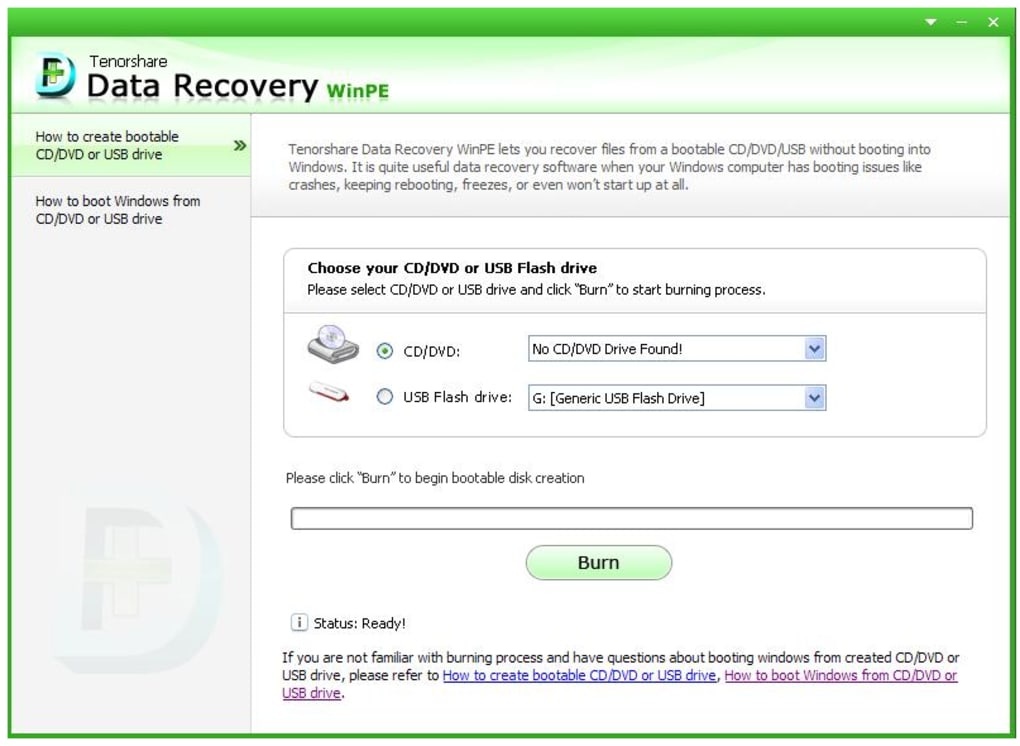
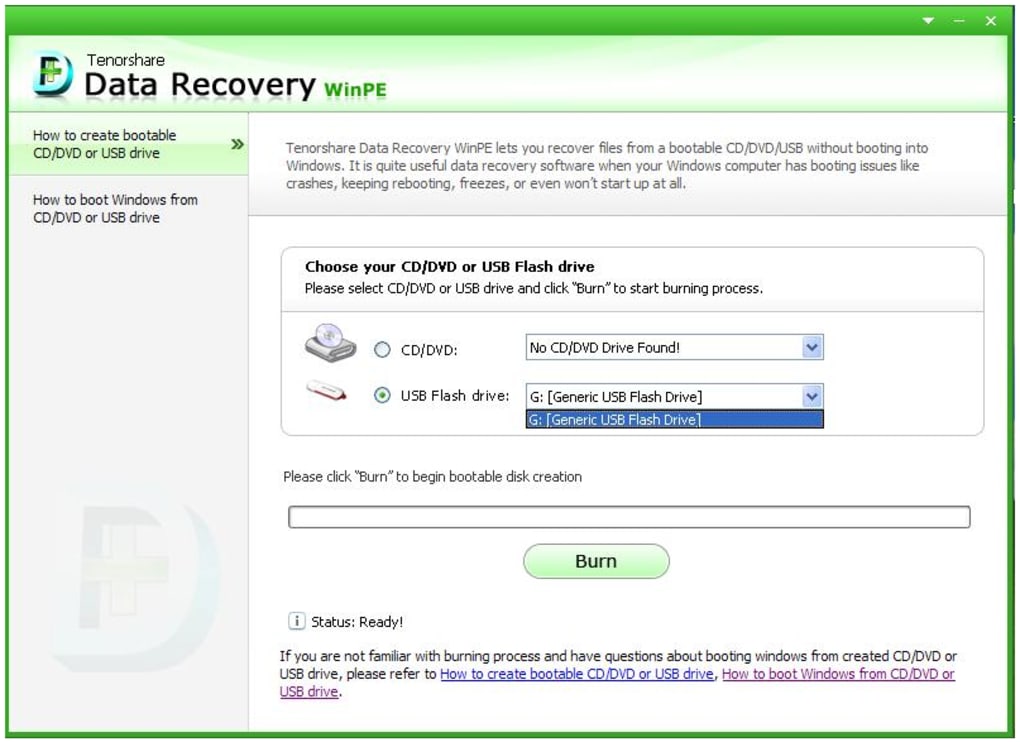
To create the bootable media, you’ll need a USB flash drive (minimum 4GB) or a blank CD/DVD. For USB creation, use the built-in tool in the software or a third-party utility like Rufus. Simply select the ISO file, choose your USB drive, and start the burning process.
The tool will format the drive and copy the necessary recovery environment files. Once complete, shut down your computer, insert the USB or CD, and restart the machine.
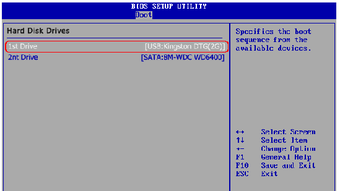
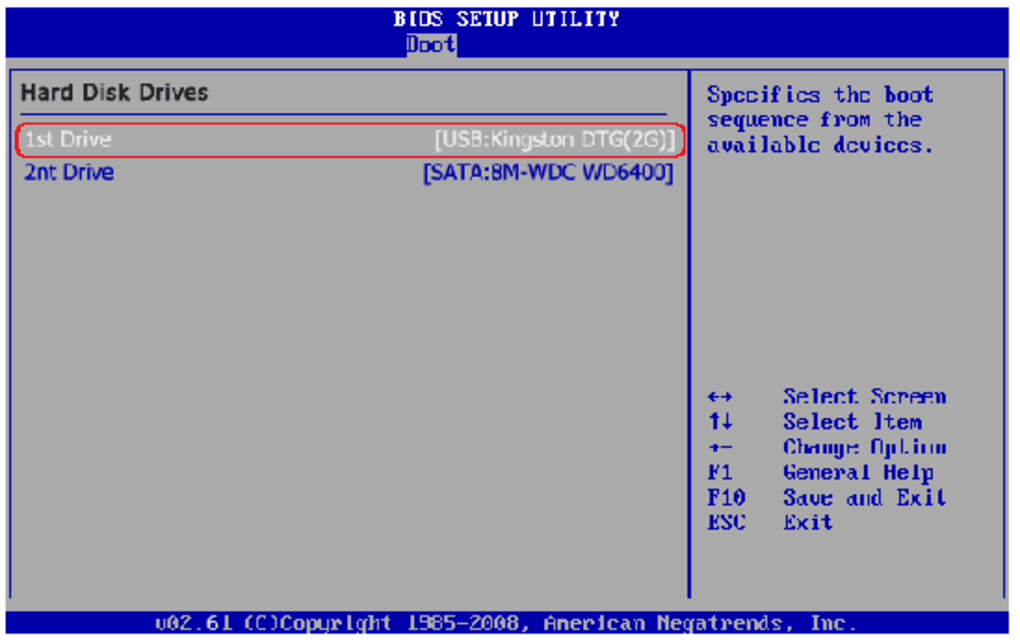
Upon reboot, you may need to enter the BIOS or UEFI settings to change the boot order. Look for options like “Boot Priority” or “Boot Device Selection” and set the USB or CD as the primary boot device. Save changes and exit.
Your computer will now load the Tenorshare Data Recovery WinPE environment. The interface will appear in a few seconds, displaying a clean, user-friendly menu. From here, select the drive you want to scan, choose the type of recovery (e.g., deleted files, formatted drive, lost partition), and start the scan.
The tool uses both quick and deep scanning modes—quick scans are faster for recently deleted files, while deep scans are more thorough for older or severely corrupted data. After scanning, preview the recoverable files, select the ones you need, and save them to a different drive to avoid overwriting the original data.
Compatibility & System Requirements
Tenorshare Data Recovery WinPE is designed to be compatible with a wide range of hardware and operating systems. It supports all major Windows versions, including Windows 7, 8, 8.1, 10, and Windows Server 2003, 2008, 2012, and 2016. It works on both 32-bit and 64-bit systems, ensuring broad accessibility.
The software is also compatible with various storage devices, including SATA, IDE, NVMe, SSDs, HDDs, USB drives, SD cards, and external hard drives. This makes it suitable for desktops, laptops, and even older machines. While the tool is primarily designed for Windows environments, it can also be used to recover data from Mac systems when connected via USB or external enclosures.
For optimal performance, ensure your computer has at least 2GB of RAM and a USB 2.0 or higher port for faster data transfer. The ISO file is around 1.5GB, so you’ll need sufficient space on your computer to download and store it. The software does not require installation on the target machine—it runs entirely from the bootable media.
This means no risk of modifying the original system or introducing malware. The recovery environment is lightweight and efficient, loading quickly even on older hardware. It’s also ideal for IT professionals managing multiple systems, as it can be deployed across different machines without configuration.
With its broad compatibility and minimal system requirements, Tenorshare Data Recovery WinPE is a reliable choice for emergency data recovery, regardless of your hardware setup.
Pros and Cons of Tenorshare Data Recovery WinPE
- Pros:
- Works on unbootable systems with no OS installed
- Supports deep scanning for lost or deleted files
- Compatible with all major Windows versions and file systems
- Easy-to-use interface suitable for beginners
- Safe, read-only environment prevents data overwriting
- Supports recovery from USB, SD cards, and external drives
- Available in multiple languages
- Free to download and use (basic version)
- Cons:
- Advanced recovery features may require a paid license
- Only available as a bootable ISO (no native Windows app)
- Requires external media (USB/CD) for operation
- Limited to file recovery—no system repair or OS restoration
- No built-in backup scheduling or automation
Frequently Asked Questions (FAQ)
-
Can I use Tenorshare Data Recovery WinPE on a Mac?
Yes, while the tool is designed for Windows, you can use it on a Mac by creating the bootable USB on a Windows PC and then using it to recover data from a Mac’s hard drive or external storage. The software supports HFS+ and exFAT file systems, making it compatible with Mac drives.
-
Is Tenorshare Data Recovery WinPE free to use?
Yes, the basic version is free to download and use. However, some advanced recovery features and file previews may require a paid license. The free version allows you to scan and view recoverable files, but saving them typically requires purchasing a full license.
-
How do I create a bootable USB with this tool?
Download the ISO file from the official site, insert a USB drive (4GB or larger), and use a tool like Rufus or the built-in burner in the software to write the ISO to the USB. Once done, you can boot from it on any compatible PC.
-
Can it recover data from a formatted drive?
Yes, Tenorshare Data Recovery WinPE can recover data from formatted drives, even after quick or full formatting. The software performs deep scans to locate remnants of deleted files, making it effective in most formatting scenarios.
-
Does it work with ransomware-encrypted files?
While it cannot decrypt files encrypted by ransomware, it can recover unencrypted versions of files if they were previously saved in a different location or if the encryption process was interrupted. It’s best used as a recovery tool after ransomware removal.
Final Verdict & Call to Action
Tenorshare Data Recovery WinPE is a must-have tool for anyone concerned about data loss. Its ability to boot from external media and recover files from unbootable systems makes it a lifeline in emergency situations. Whether you're dealing with a blue screen, malware infection, or accidental formatting, this software provides a secure and reliable path to data recovery.
While the free version has limitations, the core functionality is powerful and accessible. For users who prioritize data safety and peace of mind, creating a bootable recovery drive with Tenorshare Data Recovery WinPE is a smart, proactive step. Download it today, create your recovery media, and ensure your important files are always within reach—no matter what happens to your system.







